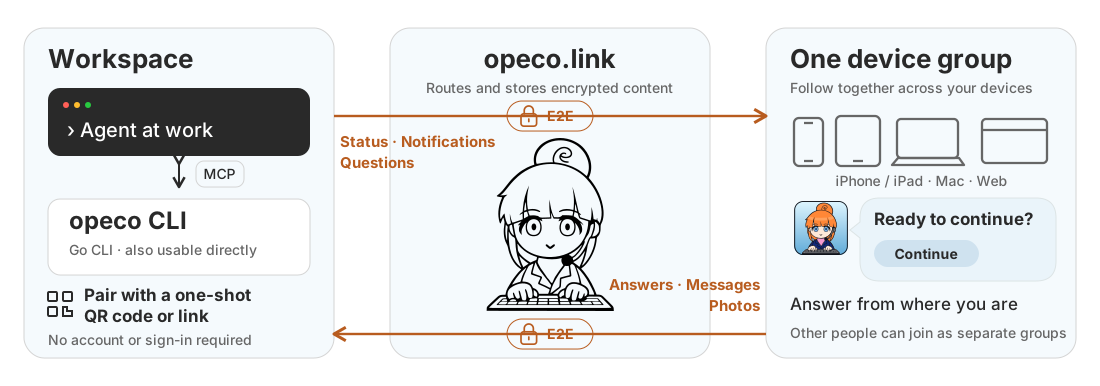

opeco.link connects a short-lived Agent or CLI session to one or more device groups, letting people follow work, answer questions, and send feedback. Join through a one-shot QR code or pairing link using the PWA, iOS/iPadOS app, or macOS app. Subsequent notifications, status updates, questions, and responses are end-to-end encrypted.
There are no user accounts and no recovery flow. A session expires one day after its creator's last activity. The relay stores ciphertext and routing metadata, but does not receive application payloads in plaintext. The web client must still trust the JavaScript served by its origin.
The PWA is available at opeco.link.
A demo that plays the agent's part runs at demo.opeco.link: open it, scan the QR code with the app, and send notifications, questions, and status updates from the page.
Download the archive for your platform from GitHub Releases. Each release provides opeco_<version>_<os>_<arch>.tar.gz for Linux and macOS, opeco_<version>_windows_<arch>.zip for Windows, on amd64 and arm64, along with checksums.txt.
Verify the checksum, extract the archive, and place the opeco executable (opeco.exe on Windows) on your PATH:
shasum -a 256 --ignore-missing -c checksums.txt
tar -xzf opeco_<version>_<os>_<arch>.tar.gz
install -m 0755 opeco /usr/local/bin/opeco
Building requires the Go toolchain version declared in go.mod:
git clone https://github.com/yacchin1205/opeco-link.git
cd opeco-link
go build -o opeco ./cmd/opeco
Place the resulting opeco executable on your PATH as above.
Create a session in a POSIX-compatible shell (such as bash or zsh):
eval "$(opeco --title 'Deployment')"
opeco prints only shell exports to stdout, prints the one-shot pairing link and terminal QR code to stderr, and exits. Pair a device using that link or QR code, then run commands from the same shell:
opeco join
opeco status "Building"
opeco notify "Build completed"
opeco request "Continue deployment?" "Continue" "Stop"
opeco responses
opeco close-request REQUEST_ID
opeco color '#d9f2d0'
opeco pair
opeco close
unset OPECO_SESSION_FILE OPECO_SESSION_ID
There is no background process. OPECO_SESSION_FILE points to a private temporary state file; OPECO_SESSION_ID identifies the session. Each command loads and saves the creator keys, authenticated group history, open requests, and response cursor under an exclusive file lock. Child shells inherit the session. Running the initialization again creates a separate session; it does not close the previous one.
responses returns responses not previously read by this shell session, including free-form messages and verified photo paths. Run it again to check for new replies. pair prints an additional one-shot pairing link (and a QR code when stdout is a terminal). No local QR image server runs in shell mode; use --interactive for the browser-based QR viewer.
close deletes the remote session and its local state and attachments. It cannot unset variables in the parent shell, so unset them afterward. A command that discovers the session has expired also removes its local files and reports the API error. Merely leaving the shell does not close the session or remove its files; abandoned files remain until ordinary OS temporary-file cleanup. Losing the file means losing control of that session, with no recovery flow.
For local development, supply the service URL at initialization. Later commands use the saved URL:
eval "$(opeco --base-url http://127.0.0.1:8787 --title 'Local session')"
Start a session:
opeco --interactive --title "Deployment"
The CLI prints a terminal QR code, its pairing URL, and a QR image URL such as http://127.0.0.1:49152/qr/..., then opens that URL in the default browser to display a full-size QR image without creating a file. Scan it with the receiving device. The CLI reports whether the browser opened, and reports when a new device group starts receiving the session.
The browser is not opened inside an SSH session, where it would appear on the remote display, and --no-browser suppresses it everywhere. The QR image URL is printed either way, so it can be opened by hand.
The terminal QR code depends on the cell geometry of a terminal, so it is drawn only when opeco writes to one; redirected or piped output gets the two URLs alone. Pass --no-terminal-qr to suppress it on a terminal as well, when the block characters are noise, when the terminal is too narrow to render them, or when the screen is being shared or recorded. The pairing URL is still printed either way and remains a temporary secret.
Session cards use a randomly selected pastel color by default. Pass --color '#a1b2c3' to choose an exact color at startup.
The PWA and native apps prepare a single-device cryptographic group automatically. On the device you want to add, open device management and choose "Add this device to another group" to create a 10-minute invitation. Open its link or scan its QR code on a device already in the destination group to approve the addition. The invitation authenticates the exact device request and the accepted signed group transition without revealing its approval secret to the relay. Invitation QR codes and links disappear as soon as approval is pending. A device can stop sharing only while two or more devices are in the group; it then returns automatically to single-device use. Different people should join the Agent session as separate device groups instead of sharing one group.
Available commands:
join
pair
notify Deployment completed
status Waiting for approval
color #d9f2d0
request Continue deployment? | Continue | Stop
close-request REQUEST_ID
responses
close
quit
pair creates another one-shot QR code for an additional device group.color changes the card color during the session; use color random to select another pastel color.status updates the card silently, unless the device is watching the session: long-press the opeco icon beside the session on iOS or macOS to toggle watching, and every status update then shows a generic status-updated alert, collapsed to the latest one. notify returns the item ID used to identify a later dismissal and shows a generic new-notification alert, while request shows a generic input-requested alert. Encrypted event content is not included in any OS alert. The PWA has no OS push notifications or session watching.close-request ends the identified request on connected devices.opeco exits. It is held only in process memory, and the response prevents browser caching. pair opens the new image in the browser under the same rules as startup.responses retrieves every choice response, request dismissal, and free-form message without selecting or aggregating them.close immediately deletes the session and removes its card from connected browsers.quit only exits the CLI. The session remains until its normal expiry, but its creator keys are lost with the process.Use --base-url before the optional mode argument when connecting to a development deployment:
opeco --interactive --base-url http://127.0.0.1:8787 --title "Local session"
Run the same binary as a stdio MCP server:
opeco mcp
A typical MCP client configuration is:
{
  "mcpServers": {
    "opeco-link": {
      "command": "/absolute/path/to/opeco",
      "args": ["mcp"]
    }
  }
}
The server exposes tools to create and pair sessions, wait for a device group, send notifications and status updates, change card colors, ask and close multiple-choice questions, receive choices, dismissals, free-form messages, and photos, and close sessions.
A session identifies the agent, so one MCP process runs one session: session_create returns the session already running instead of starting another, and omits the pairing fields once a device group has joined. Add a device group with session_pairing_create; start a separate session by closing the running one first.
Nothing pushes a response to the agent, so every send also hands over the responses received before it: status, notify, session_color, request, and request_close return them alongside their own result. Each response is handed over once, whether by a send or by responses_wait.
Protocol version 4 lets the PWA, iOS app, or macOS app send feedback containing text, up to five JPEG photos, or both. On iOS, a photo can be taken with the camera or selected through the system photo picker; the picker gives the app only the items the person chooses rather than requiring full-library access. On macOS, images can be pasted from the clipboard with Command-V or the explicit Paste button. The app reads the clipboard only in response to that action. The native clients fix orientation, limit the long edge to 2048 pixels, and normally compress toward 1 MiB. The current service policy rejects attachment ciphertext over 2 MiB; that value is returned by the reservation API and is not encoded as a permanent protocol limit.
Photos use a separate ECDH/HKDF context and full-file AES-256-GCM encryption. A private R2 bucket receives only the ciphertext; the encrypted response carries the media type, dimensions, nonce, plaintext length, ciphertext length, and checksum. opeco checks the manifest, checksum, GCM tag, and JPEG dimensions before writing plaintext. MCP returns the verified photo as a file: resource link.
Verified plaintext is written below the operating system's temporary directory, with a 0700 directory and 0600 file where those modes apply. It is removed when the local session is closed or replaced. This is ordinary temporary-file cleanup, not secure erasure: a crash can leave the file until the operating system cleans its temporary storage.
session_create and session_pairing_create return qr_image_url and pairing_url. They do not return a terminal QR code: an MCP result is rendered by an agent before a person sees it, and neither opeco nor the agent can check that block characters survived that rendering intact.
opeco opens qr_image_url in the default browser of its own machine and reports the outcome: qr_opened is true when the browser command succeeded, and qr_open_error otherwise explains why nothing opened, such as an SSH session, a missing open or xdg-open, or --no-browser in the MCP args. When nothing opened, ask the person to open qr_image_url in a browser.
The image URL is reachable only from the same machine as the opeco process. When MCP runs in a container, on a remote host, or across SSH without port forwarding, use the pairing URL instead.
opeco, so on a shared or remotely viewed display start opeco with --no-browser.0700) and file (0600) where those modes apply. Treat that file as a secret: anyone who can read it can control the session and decrypt its messages. Do not share, back up, or commit it. Cleanup is not secure erasure, and missing keys are not recoverable.opeco has advanced past the response and polls again, or when the session expires; an uploaded attachment that is never committed can remain until session expiry.See CONCEPT.md for the product model and DESIGN.md for design rationale.
Questions and problems: open an issue at https://github.com/yacchin1205/opeco-link/issues, or email [email protected]. Do not include private keys or unused pairing links or QR codes. The privacy policy is at https://docs.opeco.link/privacy.
Copyright 2026 Satoshi Yazawa.
Licensed under the Apache License, Version 2.0.
Third-party dependencies retain their respective licenses.
CLI release archives include their license texts and notices in licenses/,
collected from the dependencies for each build target.